

%20(1)%201%20(1).webp)


So richten Sie eine eSIM auf dem iPhone in weniger als einer Minute ein (Schritt-für-Schritt-Anleitung)
%20(50).jpg)
Wenn Sie ein iPhone nutzen, ist Ihr Gerät höchstwahrscheinlich eSIM-kompatibel.
Tatsächlich unterstützt jedes iPhone ab dem XS und XR eSIM, und wenn Sie in den USA ein iPhone 14 oder ein neueres Modell nutzen, ist dies die einzige Möglichkeit, mit der Ihr Telefon eine Verbindung zu Mobilfunknetzen herstellt.
Jetzt muss nur noch die Einrichtung erfolgen. Bei GigSky bleibt Ihre eSIM nach der Installation auf Ihrem Smartphone gespeichert. Sie müssen diesen Vorgang nicht bei jeder Reise wiederholen.
Reisen in der Zukunft ist ganz einfach: Öffnen Sie die App, wählen Sie ein Datenpaket aus, und schon sind Sie verbunden – egal, ob Sie ins Ausland fliegen, eine Kreuzfahrt antreten oder auf eine Fähre steigen.
In dieser Anleitung erfahren Sie, wie Sie die eSIM auf dem iPhone einrichten, damit sie ab sofort reibungslos funktioniert und auch auf allen zukünftigen Reisen einwandfrei läuft.
Bevor Sie loslegen, sollten Sie ein paar kurze Überprüfungen vornehmen. Das dauert nur wenige Minuten und erleichtert Ihnen die weitere Arbeit erheblich. Legen wir los.
Ist Ihr Smartphone eSIM-kompatibel?
Öffne dein Handy und wähle *#06#. Wenn eine EID-Nummer angezeigt wird, unterstützt dein Handy eSIM.
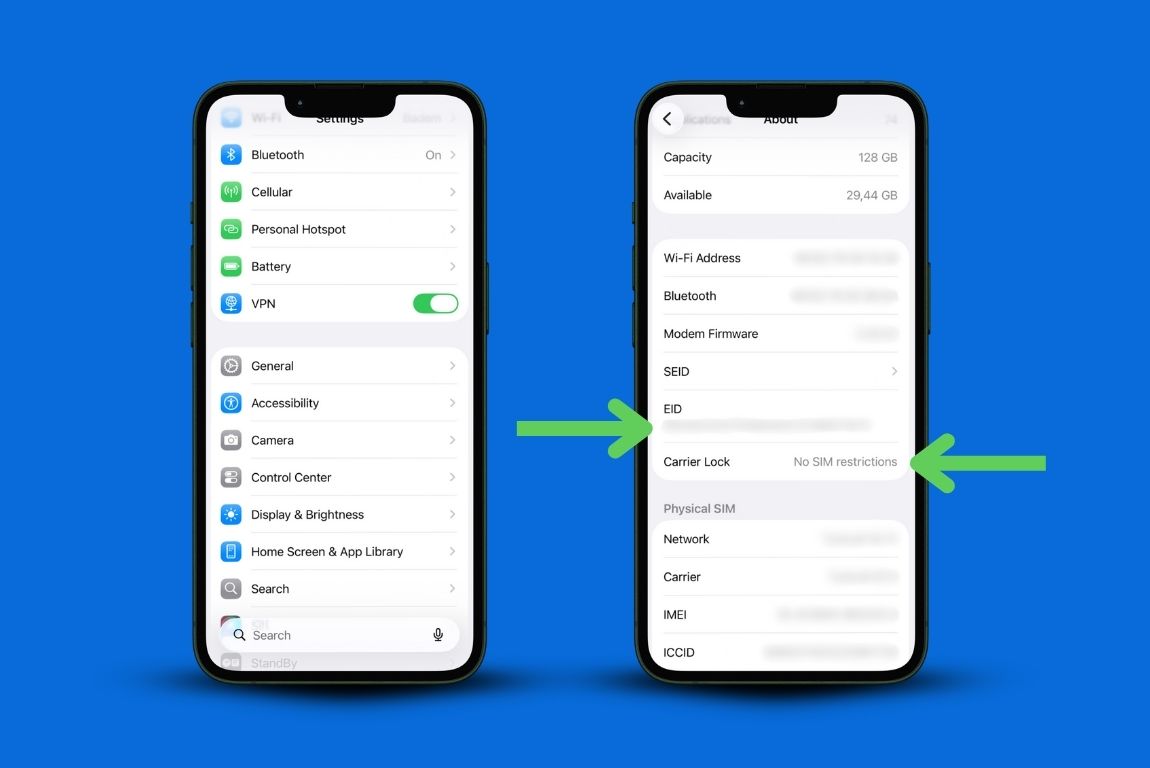
Keine EID? Gehen Sie zu „Einstellungen“ > „Allgemein“ > „Über“. Suchen Sie auf diesem Bildschirm nach „eSIM“ oder „EID“. Wenn Sie diese Angaben nicht finden, können Sie hier noch einmal nachsehen:
Ist Ihr Handy entsperrt?
Tippen Sie in den Einstellungen auf „Allgemein“ > „Über“ und scrollen Sie zu „Netzbetreibersperre“.
Wenn dort „Keine SIM-Einschränkungen“ steht, ist Ihr Telefon entsperrt. In allen anderen Fällen müssen Sie sich zunächst an Ihren Mobilfunkanbieter wenden.
Das dauert jetzt nur zwei Minuten. So vermeiden Sie, dass Sie ein Paket kaufen, das Sie später nicht nutzen können.
Schritt für Schritt: So richten Sie eine eSIM auf dem iPhone ein
So läuft die Einrichtung der eSIM auf dem iPhone von Anfang bis Ende ab.
1. Lade die GigSky-App herunter und wähle deinen Tarif aus
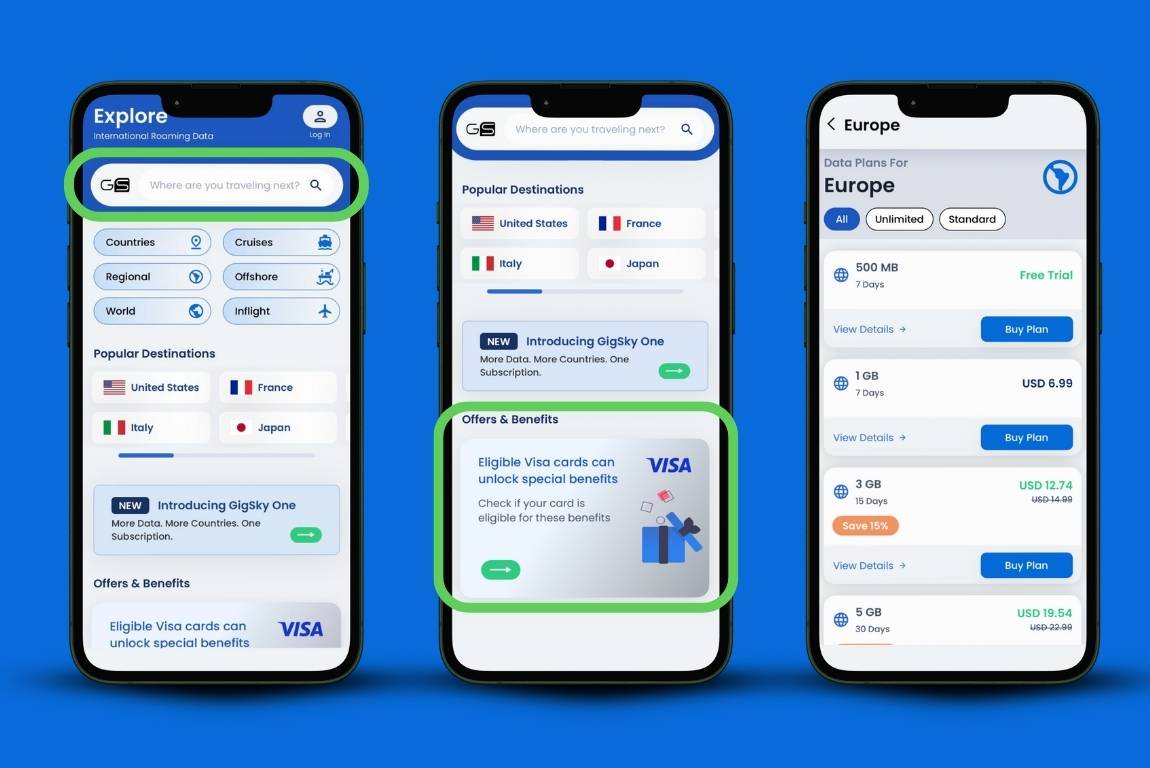
Öffne den App Store, lade GigSky herunter und gib dein Ziel ein.
Prüfen Sie, ob Sie Anspruch auf kostenloses Datenvolumen haben (Visa-Karteninhaber erhalten bis zu 3 GB). Wählen Sie dann Ihr Datenvolumen aus und tippen Sie auf „Tarif kaufen“.
2. Benennen Sie Ihr eSIM-Gerät
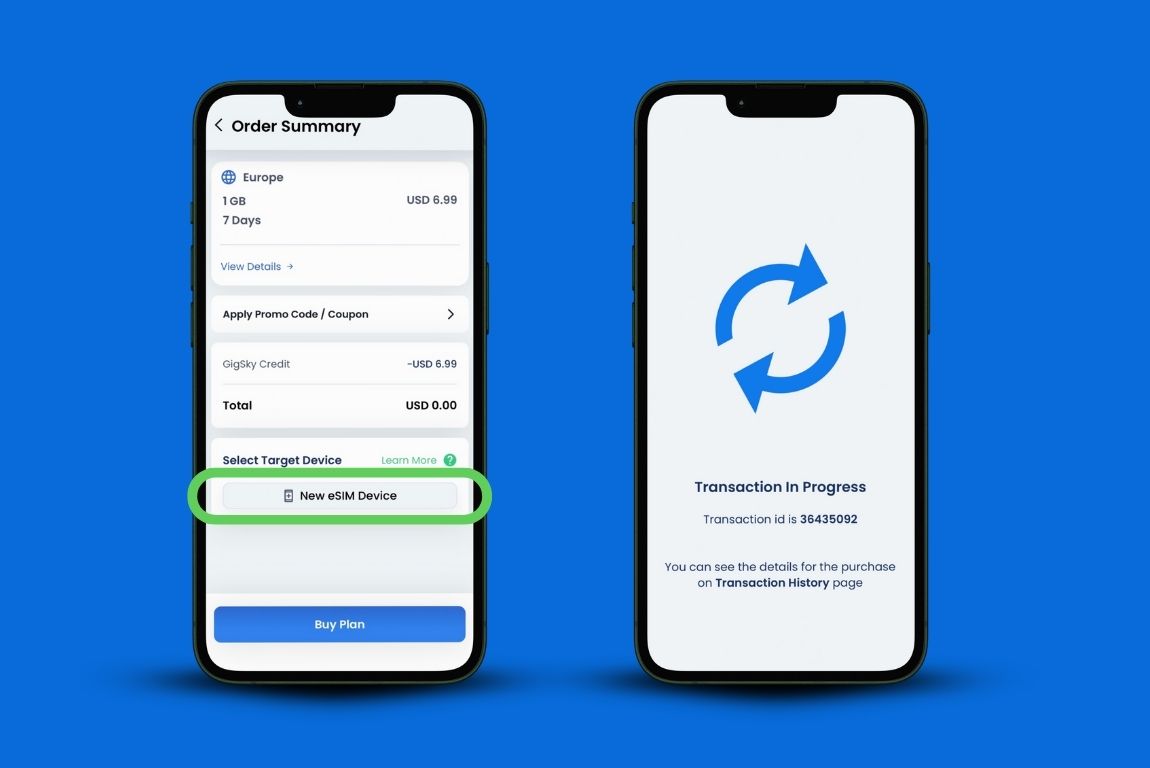
Wähle „Neues eSIM-Gerät“ aus und gib ihm einen Namen wie „Annes iPhone“.
Warum das wichtig ist: Wenn Sie Datenpakete für Mitreisende kaufen, können Sie durch die Benennung der eSIM erkennen, wem der jeweilige Tarif gehört, und so vermeiden, dass Sie den falschen Tarif verwenden.
3. Starten Sie die Installation
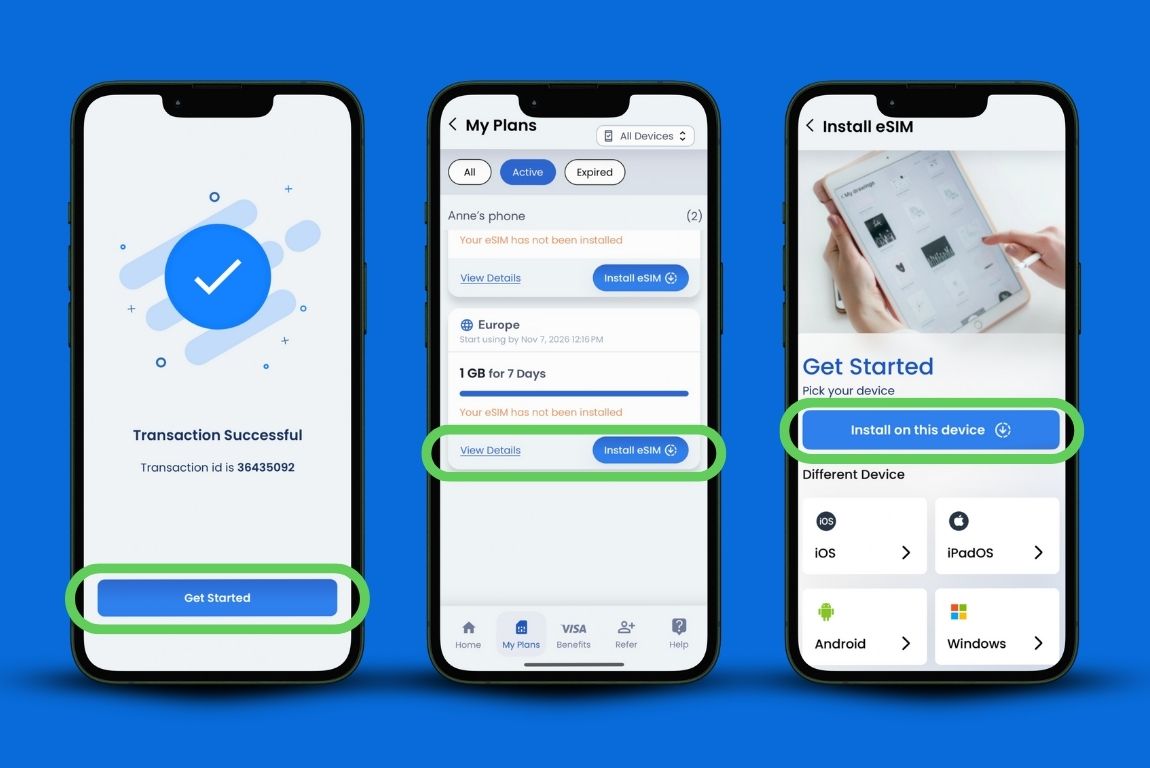
Tippen Sie auf „Los geht’s“. Die App leitet Sie zu „Meine Pläne“ weiter.
Tippen Sie auf „eSIM installieren“ und anschließend auf „Auf diesem Gerät installieren“. Damit wird der Installationsvorgang für die eSIM auf dem iPhone gestartet.
4. eSIM auf dem iPhone aktivieren
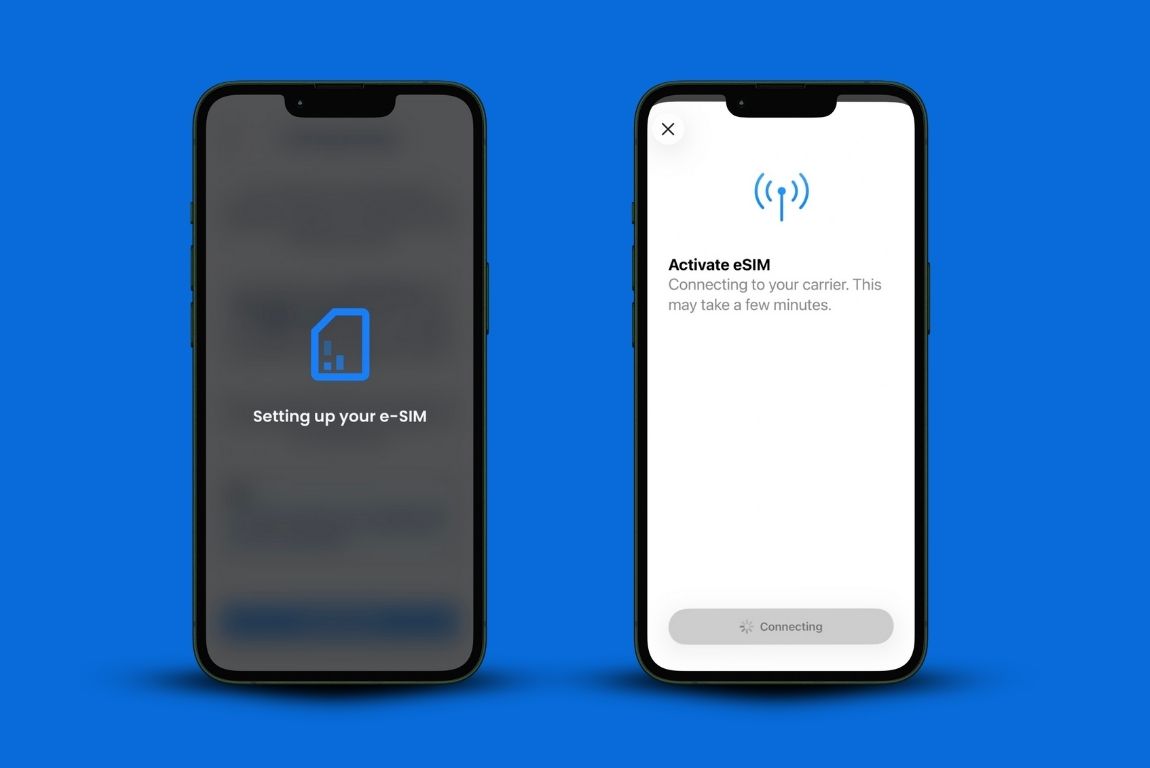
Tippen Sie auf „Loslegen“, dann auf „eSIM aktivieren“ und anschließend auf „Weiter“.
Ihr Smartphone führt Sie durch die weiteren Schritte. An dieser Stelle fragt iOS nach Ihrer Erlaubnis, eine eSIM zum iPhone hinzuzufügen. Erteilen Sie diese bitte.
5. Wählen Sie die GigSky-eSIM als Ihre Datenverbindung aus
Mit dieser Einstellung legen Sie fest, welche SIM-Karte für die Mobilfunkdatenverbindung verwendet wird.
Wenn „Mobilfunkdaten“ auf „Aus“ gesetzt ist, nutzt Ihr Telefon überhaupt keine Mobilfunkdaten.
Hier wählen Sie die GigSky-eSIM als Datenverbindung aus und stellen sicher, dass die Option „Mobilfunkdatenwechsel zulassen“ deaktiviert ist.
Warum das wichtig ist: Wenn Sie Ihren Festnetzanschluss für die Datennutzung aktiv lassen, können Roaming-Gebühren anfallen. Ihr Mobilfunkanbieter unterscheidet nicht zwischen Ihrer eSIM und seinem eigenen Dienst. Er stellt Ihnen weiterhin Daten in Rechnung, die über ihn geleitet werden.
Das richtige Timing finden
Sie können die eSIM auf dem iPhone installieren, sobald Sie es gekauft haben. Es gibt jedoch eine bessere Vorgehensweise.
Das passiert, wenn man zu früh installiert:
Nehmen wir an, du hast ein 7-Tage-Paket mit 1 GB gekauft. Du installierst es acht Tage vor deiner Reise, weil du gut vorbereitet sein möchtest. Wenn du dann abreist, hast du bereits einen Gültigkeitstag verbraucht. Bei deiner Ankunft bleiben dir also nur noch sechs statt sieben Tage.
Oder man kauft ein 15-Tage-Abo schon Wochen im Voraus, weil es gerade ein Sonderangebot gibt. Man installiert es sofort. Bis man an Bord geht, ist es bereits abgelaufen.
Wann sollte man eine eSIM auf dem iPhone installieren (je nach Art der Reise)
Wenn Sie fliegen: Installieren Sie die App am Tag vor dem Abflug. Tun Sie dies vor Ihrem Flug, solange Sie zu Hause noch eine stabile WLAN-Verbindung haben. Nach der Landung verbindet sich Ihr Smartphone automatisch.
Wenn Sie eine Kreuzfahrt unternehmen: Installieren Sie die App am Tag des Kreuzfahrtbeginns. Deaktivieren Sie GigSky nach der Installation und schalten Sie es einige Minuten vor dem Einsteigen wieder ein.
Wenn Sie mit der Fähre reisen: Gehen Sie genauso vor wie bei einer Kreuzfahrt. Installieren Sie die App am Tag der Abreise und lassen Sie sie deaktiviert, bis Sie tatsächlich an Bord gehen.
Auf diese Weise vermeiden Sie, dass Sie Gültigkeitstage verschwenden, solange Sie noch zu Hause sind.
Ja, Sie benötigen WLAN, um die Aktivierung durchzuführen
Die Aktivierung der eSIM auf dem iPhone kann ohne Internetverbindung nicht abgeschlossen werden. So funktioniert diese Technologie nun einmal.
Die meisten Flughäfen bieten kostenloses WLAN an, doch die Verbindung kann unzuverlässig sein. Es ist sinnvoller, die Installation zu Hause vorzunehmen, da man dort über eine stabile Internetverbindung verfügt und Zeit hat, eventuelle Probleme zu beheben, falls diese auftreten sollten.
Wenn du wartest, bis du gelandet bist, und das WLAN am Flughafen nicht funktioniert, wirst du länger warten müssen, als dir lieb ist.
Was passiert mit Ihrem normalen Mobilfunkvertrag?
An Ihrem regulären Tarif ändert sich nichts. Ihre physische SIM-Karte bleibt in Ihrem Handy. Sie können sie aktiviert lassen, wenn Sie Anrufe empfangen oder SMS senden und empfangen möchten, allerdings können hierfür im Ausland Roaming-Gebühren anfallen.
Um unerwartete Rechnungen zu vermeiden, geh zu „Einstellungen“ und deaktiviere deine Haupttelefonnummer vollständig. Lass im Ausland nur GigSky aktiviert.
Sie erhalten keine SMS-Bestätigungscodes
GigSky ist ein reines Datenpaket. Du erhältst Nachrichten von WhatsApp, Telegram und allen anderen Diensten, die das Internet nutzen. Herkömmliche SMS-Nachrichten oder Bestätigungscodes erhältst du jedoch nicht.
Wenn Sie auf Reisen eine Zwei-Faktor-Authentifizierung benötigen, sollten Sie stattdessen eine Authentifizierungs-App verwenden.
Fehlerbehebung bei häufigen Problemen bei der eSIM-Einrichtung auf dem iPhone
Keine Datenverbindung nach der Landung: Das iPhone nutzt entweder Ihre Hauptnummer oder GigSky für die Mobilfunkverbindung.
Gehen Sie zu „Einstellungen“ > „Mobilfunk“ > „Mobilfunkdaten“ und stellen Sie sicher, dass „GigSky“ ausgewählt ist. Ihre Hauptnummer kann aktiviert bleiben, sollte jedoch nicht für Mobilfunkdaten ausgewählt sein.
„Wird gesucht…“, aber es wird keine Verbindung hergestellt: Starten Sie Ihr iPhone neu. Manchmal benötigt iOS einen Neustart, um das neue Netzwerk zu erkennen, nachdem Sie die eSIM auf dem iPhone aktiviert haben.
eSIM ist installiert, es wird jedoch „Kein Tarif“ angezeigt: Möglicherweise haben Sie die eSIM zu früh installiert und das Gültigkeitsfenster ist bereits geschlossen. Überprüfen Sie den Status Ihres Tarifs in der App unter „Meine Tarife“.
Die Installation ist nicht möglich, da „Mobilfunkvertrag nicht hinzugefügt“ angezeigt wird: Möglicherweise ist Ihr Telefon noch an einen bestimmten Anbieter gebunden. Gehen Sie zurück zu „Einstellungen“ > „Allgemein“ > „Über“ > „Anbietersperre“ und überprüfen Sie, ob dort „Keine SIM-Einschränkungen“ angezeigt wird.
Fragen, die Reisende nach der Installation einer eSIM auf dem iPhone haben
Wird das bei Maps und Uber funktionieren?
Ja. Die meisten Reisenden nutzen GigSky hauptsächlich für Google Maps, Mitfahr-Apps und WhatsApp. In der Regel stehen dir 5G-Geschwindigkeiten zur Verfügung, was allerdings von deinem Standort abhängt. In abgelegenen Gebieten ist die Verbindung natürlich langsamer. Eine Autoreise durch Europa? Du bleibst stets gut vernetzt.
Werden Videogespräche funktionieren?
Ja, aber die Qualität Ihres Gesprächs hängt von Ihrem Standort ab. Wenn Sie sich auf einer Kreuzfahrt oder einer Fähre befinden, ist die Verbindung in der Regel in den Gemeinschaftsbereichen besser als in Ihrer Kabine.
Reisende schätzen an GigSky, dass es dort funktioniert, wo andere eSIMs Probleme haben. Es funktioniert in Kuba, wo die Internetverbindung eine Herausforderung darstellt. GigSky verbindet sich überall dort mit dem stärksten verfügbaren Netz.
Was passiert, wenn mein Datenvolumen aufgebraucht ist?
Gehe in der App zu „Meine Tarife“ und tippe auf „Aufladen“. Das geht ganz schnell. Die App sendet dir außerdem eine Benachrichtigung, sobald du 80 % deines Datenvolumens aufgebraucht hast, damit du nie unvorbereitet bist.
Kann ich sie löschen, ohne dass dies Auswirkungen auf meine Haupt-SIM-Karte hat?
Ja. Deine physische SIM-Karte bleibt davon völlig unberührt. Während deiner Reise deaktivierst du sie einfach in den Einstellungen. Wenn du wieder zu Hause bist, aktivierst du sie wieder. Sie funktioniert dann genau wie bisher.
Was ist, wenn es nicht klappt und ich bereits im Ausland bin?
GigSky bietet Kundensupport an, doch die Antwortzeiten können je nach Ihrer Zeitzone variieren. Sollte um 2 Uhr morgens Ortszeit ein Problem auftreten, müssen Sie möglicherweise bis zu den Geschäftszeiten warten.
Das ist ein weiterer Grund, warum es hilfreich ist, schon vor der Abreise zu wissen, wie man die eSIM auf dem iPhone einrichtet. So kannst du Probleme erkennen und beheben, solange du noch über eine normale Internetverbindung verfügst.
Die vollständige Anleitung zur Installation einer eSIM auf dem iPhone: Das musst du nur einmal machen
Das ist das Tolle an diesem Vorgang: Wenn Sie einmal wissen, wie man eine eSIM auf dem iPhone einrichtet, müssen Sie das nie wieder tun.
Die gleiche eSIM funktioniert auch auf deiner nächsten Reise. Ob in Europa, Asien oder auf einer weiteren Kreuzfahrt – das spielt keine Rolle. Du kaufst einfach ein neues Datenpaket in der App. Die eSIM selbst bleibt auf deinem Smartphone installiert.
Sie müssen die Verbindung nicht bei jeder Reise neu einrichten. Wenn Sie die eSIM mithilfe der hier beschriebenen Methode auf Ihrem iPhone einrichten, müssen Sie dies nur einmal tun und können sie dann bei jeder Reise wiederverwenden.
Die eSIM-Installation auf dem iPhone bleibt dauerhaft bestehen, und für zukünftige Reisen müssen Sie lediglich einen neuen Datentarif in der GigSky-App auswählen.


Abonnieren Sie unseren Blog


