

%2520-%25202026-07-09T132011.300.jpg&w=3840&q=75)


How to Check iPhone Data Consumption During Your International Trip
Your iPhone tracks data usage, but the number it shows isn't always the one that matters for your eSIM. Here’s where to look.
 by Amira Bula
You landed two days ago and you have no idea how much data is left on your eSIM.
Your iPhone shows one number, your eSIM app shows another, and neither tells you what you actually need.
That gap is normal. It's also fixable once you know where the iPhone keeps this information, because it isn't where most people check first, and once you understand your internet data consumption on the road, the rest gets a lot less stressful.
Where iPhone Shows Your eSIM Data
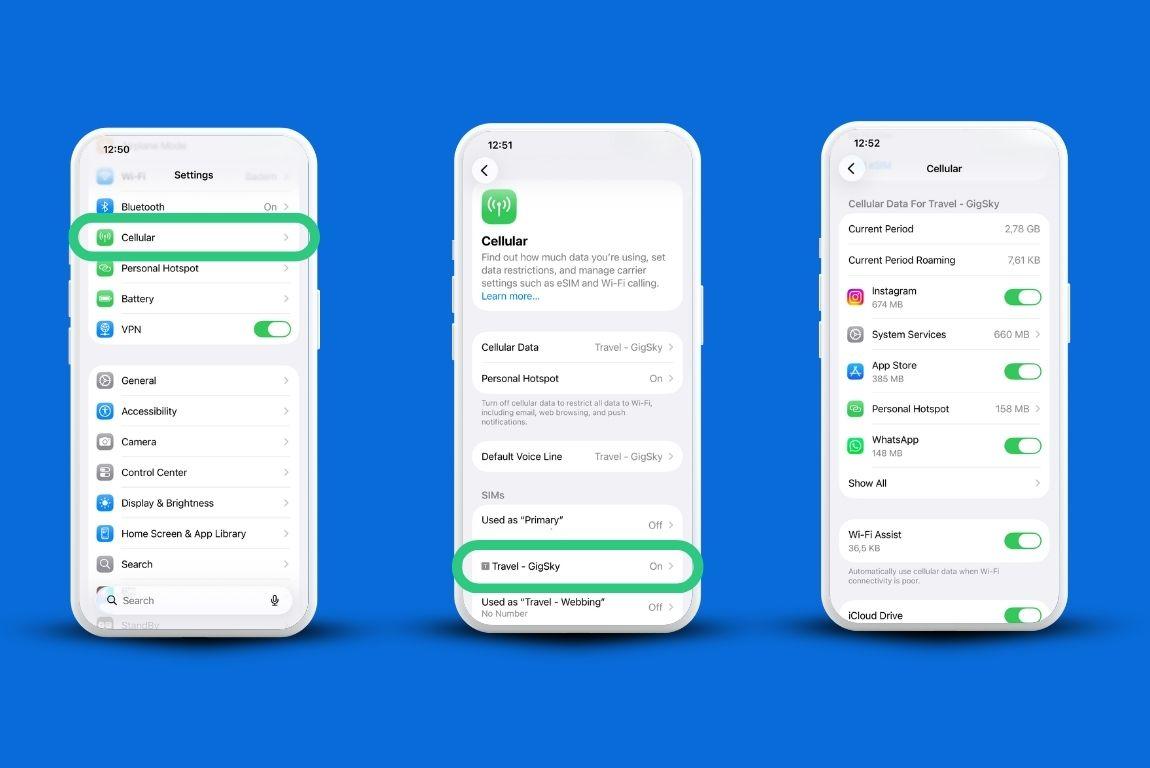
Open Settings, then tap Cellular. Every line on your phone shows up there, your physical SIM and any eSIM you've installed.
Tap into the eSIM line and you'll see total iPhone data consumption since the counter was last reset, not since you bought the plan. That one detail causes most of the confusion.
If you never reset the counter, you're looking at weeks or months of stacked usage, not this trip.
If you got an eSIM, you can check on the app, on the GigSky app. Go to My Plans, and you will see your data consumption.
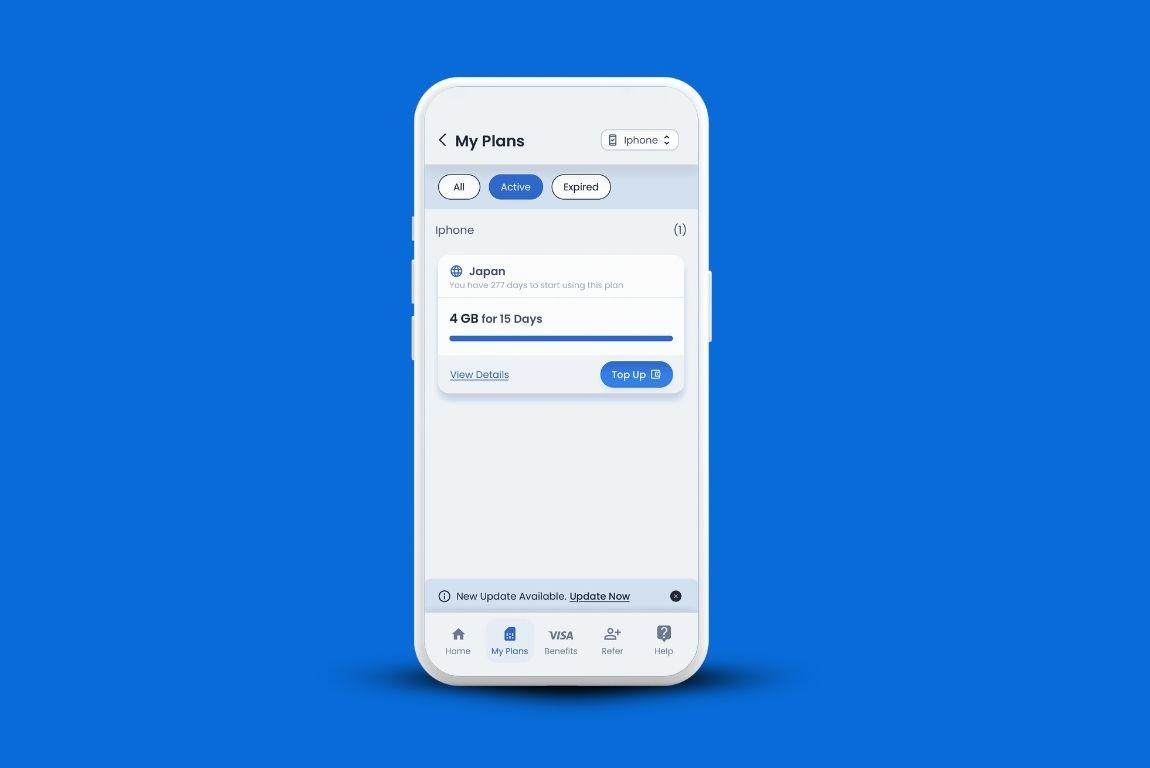
How to Separate eSIM Usage From Your Primary Line
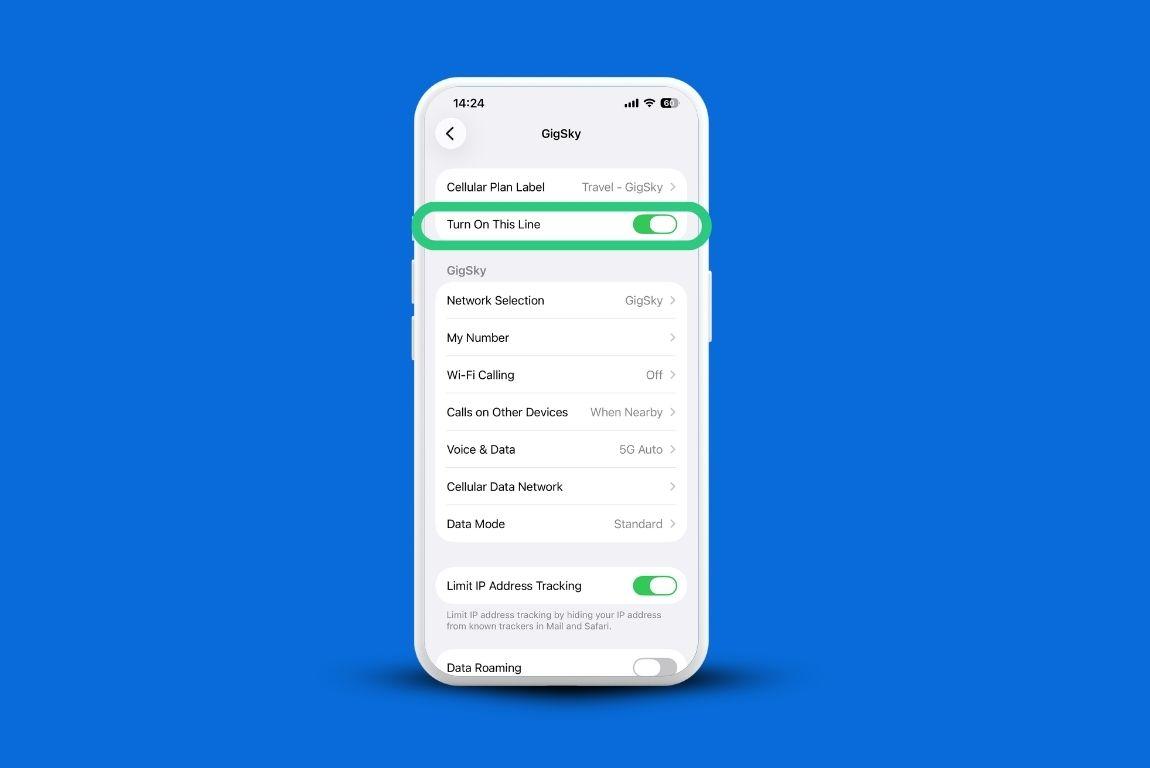
Under Cellular, iPhone lists each line by name (you can rename them so this is easier, tap the line, then Cellular Plan Label).
Toggle off any line you're not using right now, primary or otherwise, so the numbers you're reading only belong to the eSIM that's active. This is basically how to reduce data consumption confusion before it starts, since one active line means one honest number.
Skip this step and you'll end up combining two trips' worth of data into one confusing total.
How to Get a Daily Number Instead of a Running Total
Open Settings, then tap Cellular. Scroll to the bottom of the Cellular Data screen. There's a Reset Statistics option, and it's the only way to see data consumption per day rather than since forever. Tap it the moment you land or the moment your eSIM is on.
Check the total each night, write it down, reset again. Do that for two or three days and you'll have a real daily average instead of a guess pulled from memory.
How to Find Which Apps Are Eating Your Data
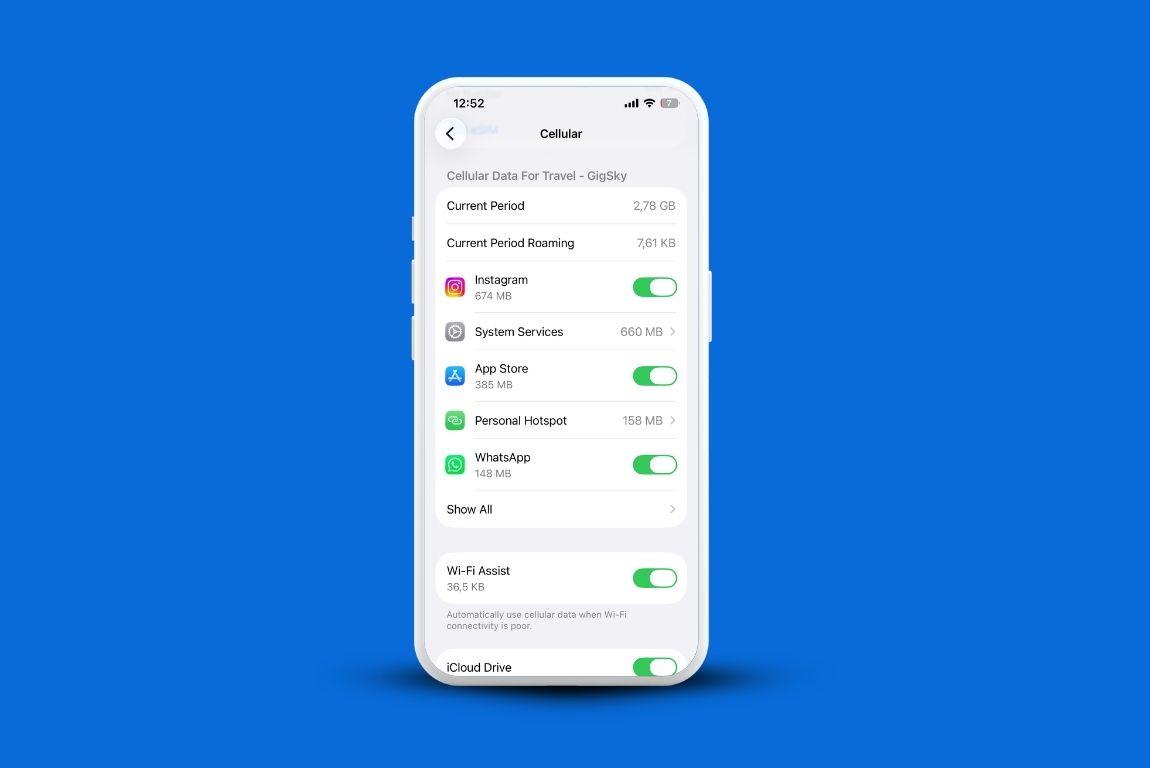
Same screen, just scroll down further. Under Cellular Data, iPhone ranks every app by how much internet data consumption it's responsible for since the last reset.
Make sure only your travel eSIM is turned on when you check this, otherwise you're mixing in whatever your home line used last month.
Streaming apps and photo backups almost always sit near the top, and the gap between them and the rest of your apps is usually bigger than people expect.
Why the iPhone Counter and Your eSIM Provider Won't Always Match
Your eSIM provider's app shows total consumption since you activated the plan. iPhone shows total iPhone data consumption since you last reset its own counter.
Those are two different clocks, and unless you reset both at the same moment, they'll drift apart.
If you want them aligned, reset your iPhone's statistics right when you install the eSIM, then reset again at the same time each day going forward.
The Background Drains Nobody Checks
iCloud backup over cellular is the quiet one.Go to Settings, tap your name, then iCloud, then iCloud Backup, and turn Backup Over Cellular off before you leave. It's one of the simplest answers to how to reduce data consumption without changing a single habit.
Background App Refresh is the other one worth a look, since apps you never opened can still be syncing in the background.
You'll find that under Settings, General, Background App Refresh, and you can turn it off entirely or app by app.
How to Know Your Real Usage Before You Buy a Bigger Plan
If you've never used a travel eSIM and you're not sure how much data a trip like yours actually needs, there's a way to find out before spending anything.
The GigSky eSIM offers a free trial with no card required, typically 100MB, with up to 500MB available in European countries. And up to 5GB free if you have an eligible Visa card.
Reset your iPhone's statistics the moment you activate it, use your phone the way you normally would for a day, and check the number that night.
It's a quick, real-world read on your iPhone data consumption before you commit to anything bigger.
That's a real answer, not a guess, and it's there whenever you download the GigSky app and search your destination.
If you'd rather not think about internet data consumption limits at all, choose an unlimited plan for the length of your trip.
You won't run out of data, although speeds may be reduced after heavy daily usage in line with the provider's fair use policy before resetting the next day.
FAQs
Can I actually trust the iPhone counter?
Mostly, yes, for tracking your own usage day to day. It won't match your provider's total to the byte, since the two systems reset on different schedules, but for spotting trends and catching a data-hungry app, it's reliable enough.
Does Low Data Mode help?
It reduces background activity like automatic downloads and video autoplay, which adds up more than people assume. Turn it on under Settings, Cellular, Cellular Data Options, Data Mode, then select Low Data Mode. It's one of the easiest native tools for how to reduce data consumption without installing anything new.
Is there a faster way to glance at usage without opening Settings every time?
Not a built-in widget for cellular specifically, but most eSIM apps, GigSky included, send a notification once you've used 80 percent of your plan.
You can also open the GigSky eSIM app, tap My Plans, and see exactly how much iPhone data consumption you've racked up. That way, you know when you're getting close without guessing.
Recap: Checking iPhone eSIM Data
- Settings, Cellular, tap your eSIM line for total usage since last reset
- Turn off other lines before reading usage so numbers aren't mixed
- Reset Statistics daily for an accurate per-day number
- Scroll down on the Cellular Data screen to see which apps use the most
- Turn off Backup Over Cellular and review Background App Refresh, both simple wins for how to reduce data consumption on any trip
- A free trial through the GigSky app is a low-risk way to learn your real usage before buying a bigger plan