


Everything You Need to Know About iPad
Don’t worry about which model iPad you have. All Cellular enabled iPads released after October 2018, have an eSIM. Whichever model you have, getting the right iPad data plan will save time and money.
 by Unknown Author
iPad Models & SIM Types
Don’t worry about which model iPad you have. All cellular-enabled iPads released after October 2018, have an eSIM, but you can also get GigSky service via a GigSky plastic (physical) SIM. Whichever model you have, getting the right iPad data plan will save time and money.
eSIM and SIM Support on iPads
Here’s a rundown on iPads that support GigSky
- iPad Pro 12.9-inch starting from 2018
- iPad Pro 11-inch starting from 2018
- iPad Air starting from 2019
- iPad mini starting from 2019
- iPad starting from 2019
- Any iPad with a GigSky SIM card installed
Important to Know:
You do not need the GigSky app to access GigSky service on your eSIM-equipped iPad. Regardless of which iPad version you have, GigSky is accessed via the cellular settings. View iPad Data Plans.
However, if you have a GigSky physical SIM card installed in the iPad, go to the GigSky Web App to purchase a plan.
CAN’T CONNECT IMMEDIATELY?
If your GigSky data plan does not immediately connect when the plan is activated, turn the device off for two minutes and then reconnect. That usually solves the problem.
GigSky works with all three SIM options, but how you access GigSky’s service will depend on which iPad version you use.
GETTING STARTED – ALWAYS USE THE LATEST VERSION OF IOS
For the best user experience of GigSky’s service on Apple SIM, always use the latest version of iOS and carrier settings.
To update your version of iOS:
https://support.apple.com/en-us/HT204204
To update your carrier settings:
https://support.apple.com/en-us/HT201270
PURCHASE A DATA PLAN ON CELLULAR IPAD:
To purchase a data plan on iPad, you must be in the country/region where you are planning to use the data.
If this is your first Purchase: (you do not need to be connected via wifi or cellular);
- Go to Settings -> Cellular/Mobile
- Select GigSky (do NOT select Other)
- Select Continue
- Select Country of Residence (your home country not your destination)
- Select Buy Now for the data plan you wish to purchase If you already have an account, you can select “I already have a GigSky Account” and use that account If you do not have a GigSky account, you need to create an account and set up the payment, then continue with the purchasing process – Select Buy Plan – The eSIM/SIM will be downloaded to the iPad and plan will be activated (this will take a minute or two) – After you receive the message the Data Plan is Activated/Updated, you are ready to connect and use data!
FOR A TOP UP OR SUBSEQUENT PURCHASES:
- Go to Settings -> Cellular/Mobile
- Select Add a New Data plan
- Complete the purchasing process
Control what apps do in the dark
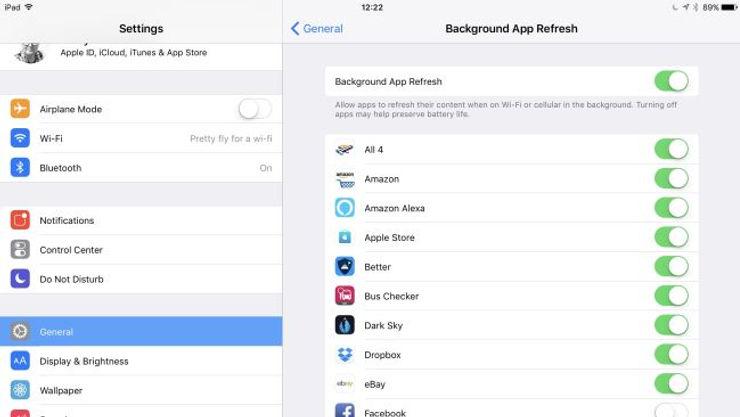
Some apps like to do things in the background, which can be useful: it’s handy to have your newspaper ready to read when you turn on your iPad in the morning for example.
But background refresh could also mean apps using bandwidth for no good reason, which isn’t ideal if you’re on a cellular connection. And as ever, Facebook tends to demand more resources than it really needs.
You can control which apps can use background refresh in Settings > General > Background App Refresh.
Need More Help? Email: support@gigsky.com – or, visit our Online Help Center.